Dohrn Shipping tracking can help you follow a shipment from pickup through delivery. The process is usually simple. Locate the tracking number on your shipping receipt, confirmation email, or bill of lading. Enter it on Dohrn’s official tracking page, then review the latest scan and shipment details. A timestamp and terminal location can show where the freight was last recorded, though updates may not appear immediately. Keep the number handy when checking again, and note the date and time of each update.
This guide explains how to check dohrn shipping tracking, understand common status messages, and respond when information seems incomplete. Compare the tracking page with your shipment documents, especially the reference number and destination. If a scan has not changed for several business days, contact Dohrn or the shipper with the tracking number ready. Be specific. Share the last visible update and the date you checked it. Mention any delivery appointment or receiving deadline that matters. That gives support staff useful context.
Tracking is useful, but it is not a live map. A shipment may move between terminals before the next scan appears, and estimated delivery dates can change. A quiet tracking page can feel more troubling than it is. Still, don’t assume a delay is harmless; confirm important delivery arrangements directly. Clear records and patient follow-up are practical ways to stay informed without guessing.
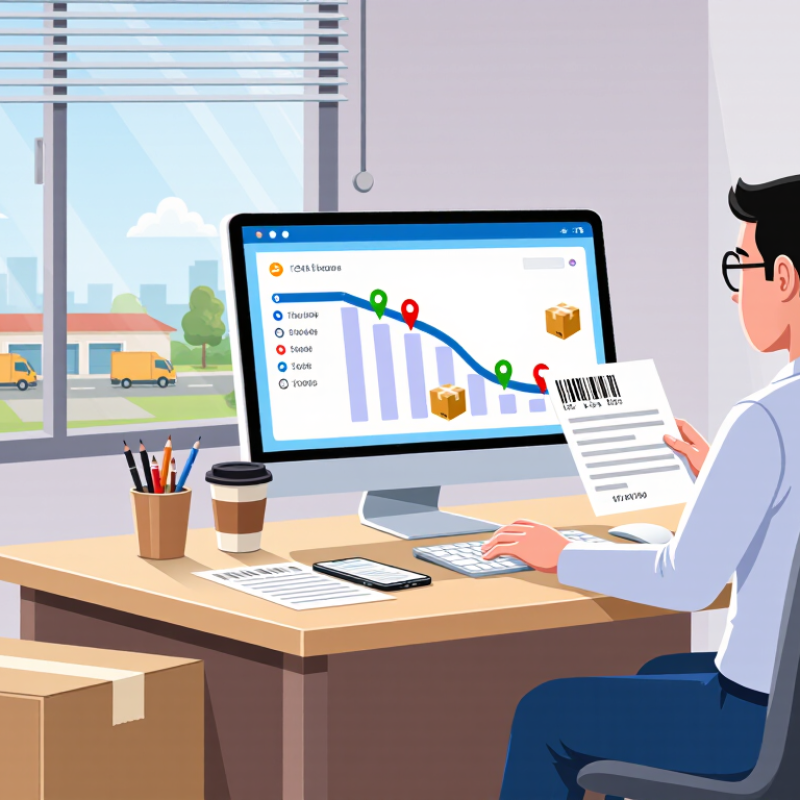
To track a shipping package, first locate the tracking number on your shipment receipt, label, or dispatch confirmation. It may appear beside words such as “tracking,” “shipment,” or “reference.” Check every line carefully; the order number and tracking number are often different. If the package was arranged online, look in the confirmation email or account’s shipment details. Copy the number exactly, including any letters. A single mistyped character can return no results.
Tips: Save the confirmation email and take a clear photo of the receipt before it fades or gets misplaced. If you cannot find a tracking number, contact the sender and ask for the shipment details. Don’t guess from an order number.
Once you have the number, enter it on the carrier’s official tracking page. Check the latest scan, date, and location, then compare them with the delivery estimate. A label may be created before the parcel receives its first scan, so an empty result does not always mean something is wrong. Wait a little, then check again. Tracking updates can lag, and that is frustrating. If the number still does not work after a reasonable interval, confirm it with the sender.
| Category | Where to Look or Status | What It Means | Recommended Action |
|---|---|---|---|
| Finding the tracking number | Shipping receipt or bill of lading | The shipment reference is usually printed among the shipment details. It may be labeled as a tracking number, shipment number, or PRO number. | Check the document provided when the shipment was booked or picked up. Copy the number exactly, including any letters or leading zeros. |
| Finding the tracking number | Shipment confirmation or dispatch email | A sender or shipping provider may include the shipment reference and tracking instructions in a confirmation message. | Search your inbox and spam folder for the shipment confirmation. If you cannot find it, ask the sender for the tracking number. |
| Finding the tracking number | Online order or shipping account | The order or shipment details page may show the reference number once shipment information has been entered. | Open the relevant order or shipment record. If the number is missing, contact the shipper or the person who arranged the shipment. |
| Tracking status | Shipment information received | Shipment details have been created, but the package may not yet have received its first physical scan. | Check again after the shipment is handed over or picked up. Scan updates may not appear immediately. |
| Tracking status | Picked up or in transit | The shipment has entered the delivery network and is moving through its route. Tracking events may appear at pickup points or facilities. | Review the latest scan and estimated delivery information. Allow time between scans, especially while the shipment is traveling between facilities. |
| Tracking status | Out for delivery | The shipment is on a delivery vehicle or in the final stage of its route. | Make sure someone can receive the shipment if a signature or business access is required. |
| Tracking status | Delivered | The tracking record indicates that delivery was completed. The record may include a delivery time or other delivery details. | Check the delivery location and with the intended recipient. If the shipment cannot be located, contact the shipper or delivery provider promptly. |
| Tracking status | Exception or delayed | An unexpected event or operational issue may affect the shipment's progress or delivery estimate. | Read the event details and check for updates. Contact the shipper or delivery provider if the status does not change or action is requested. |
Tracking labels and status descriptions can vary by shipment and service. Use the reference provided on your shipping documents and confirm shipment-specific questions with the sender or delivery provider.